The tutorials lied. Here’s what actually happens when you try this on a real production site.
If you’ve been following along with the AI automation wave, you’ve probably seen the demos: Claude talking directly to a WordPress site, pulling categories, drafting posts, updating content without copy-pasting between tabs.
What those demos skip is what happens when you try this on a live production site. One that’s self-hosted, behind Cloudflare, running performance and security plugins, serving real traffic.
That’s what I did. It took six hours, produced about fifteen error messages I’d never seen before, and ultimately worked.
This post is the honest version of that story. At the end there’s a complete setup guide so you don’t have to repeat the same six hours.
What “Claude + WordPress” Actually Means
Most of the confusion starts here, so let me explain what’s actually being built.
Connecting Claude to WordPress via MCP (Model Context Protocol) gives Claude access to your WordPress database directly. Not just the public pages. The actual posts, categories, users, settings, and metadata inside your install.
That means Claude can pull every category with exact IDs, slugs, and parent relationships. It can create a draft post in a specific category without you opening the editor. It can search published posts from a specific silo and count internal links. It can update meta descriptions across a batch of posts in one session.
You can’t do any of that through a browser and a chat window.
The connection runs through five pieces:
- Claude Desktop on your computer
- A bridge program running in the background, translating between Claude and your site
- Cloudflare sitting in front of your site, filtering traffic and, by default, blocking the bridge
- WordPress on your server with a plugin installed
- The WordPress MCP plugin that handles the actual database work when the bridge calls it
When it works, a request flows through all five and comes back with data. When it breaks, the error tells you which piece is unhappy.
The Errors I Actually Hit
In the order they appeared:
‘npx’ is not recognized as an internal or external command
The bridge runs using Node.js. Node.js wasn’t installed on my Windows machine, so Windows couldn’t find the npx command. Fix: download Node.js LTS from nodejs.org, install it with “Add to PATH” checked, restart the computer. The restart is mandatory. Windows doesn’t load the new PATH until a fresh login, and Claude Desktop only reads PATH at startup.
The “Running” Badge That Lied
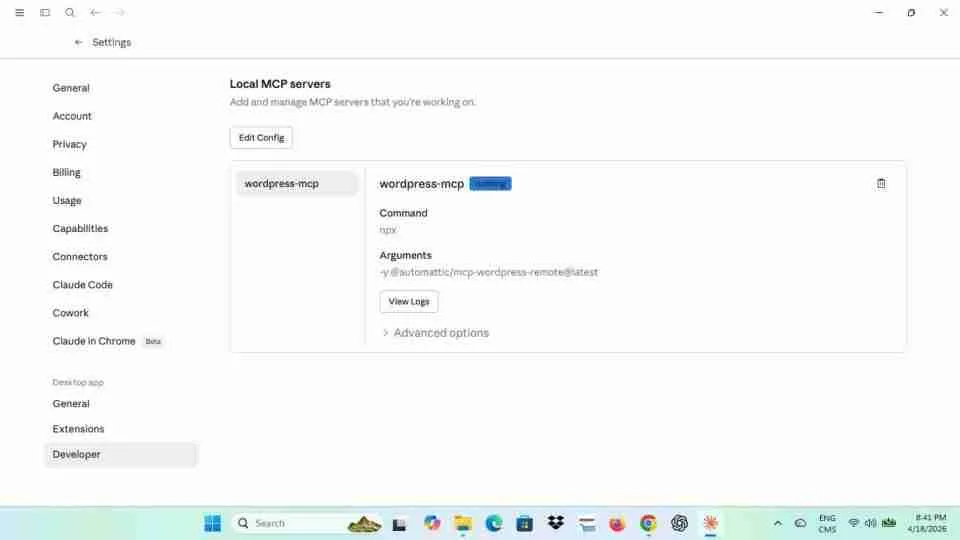
After installing Node.js and updating the config, Claude Desktop showed a blue “running” badge next to the WordPress MCP server. I thought I was done. I wasn’t. “Running” means the bridge process started. It doesn’t mean the bridge connected to the site. Asking Claude for categories got me a web-scraped narrative, not database data.
rest_authentication_error, 401 from WordPress
The REST API was returning 401 on every request, including the public root endpoint /wp-json/ that normally requires no auth at all. After checking the plugin list, I found it: Perfmatters had “Disable REST API” set to “Disable When Logged Out.” To WordPress, the bridge always looks logged out.
Fix: Settings → Perfmatters → Options → Disable REST API → Default (Enabled) → save → clear every cache layer (WP Rocket, SG Speed Optimizer, Cloudflare).
Request Timed Out, MCP error -32001
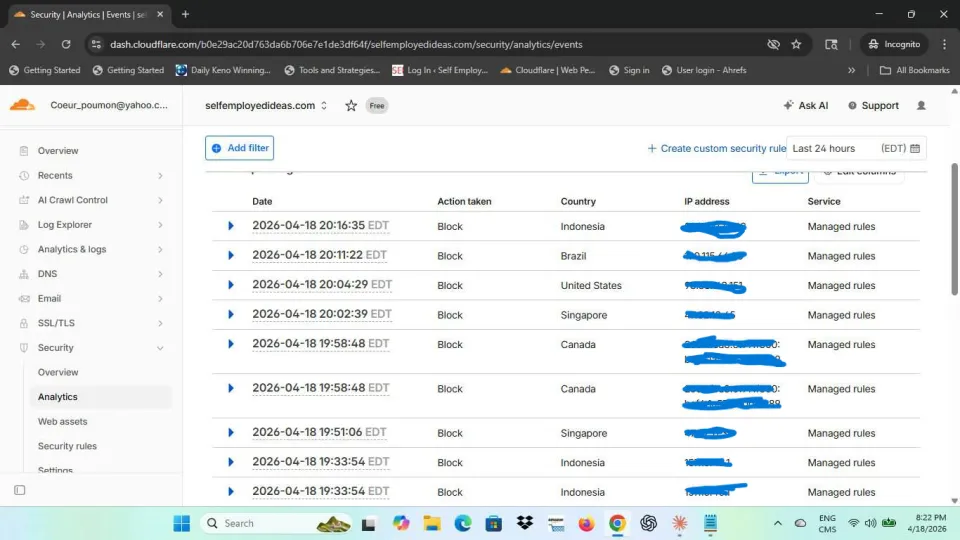
After fixing Perfmatters, the bridge would connect, initialize, send requests, then wait 60 seconds and give up. Cloudflare’s Security Events showed exactly what happened: my home IP was being blocked by the “manage definite bots” managed rule, triggered by the bridge’s node user agent.
The part that’s genuinely undocumented: the WordPress MCP bridge doesn’t send requests to /wp-json/ like most REST clients. It uses the query string form: /?rest_route=/wp/v2/wpmcp. So a Cloudflare WAF rule that matches /wp-json/ in the path won’t fire. The path is just /.
The Cloudflare WAF Rule That Actually Works
The Skip rule needs three conditions:
(
  http.request.uri.path contains "/wp-json/"
  or http.request.uri.query contains "rest_route=/wp/v2/wpmcp"
  or (http.user_agent contains "node" and http.request.uri.path eq "/")
)
and ip.src in {YOUR.IPV4.ADDRESS YOUR:IPV6:PREFIX::/64}
Path OR query string OR node user agent, gated by your home IP. That’s what let the bridge through. I haven’t seen this documented anywhere else.
What It Looks Like When It Works
Once the Cloudflare rule was in place, the Desktop logs changed completely. The bridge connected, the plugin identified itself, and 58KB of WordPress tools registered: wp_posts_search, wp_create_post, wp_get_categories, wp_update_post, about thirty in total, all talking directly to the live database.
First real test: list the top 20 categories with IDs, slugs, parent relationships, and post counts. Came back in seconds. Internal IDs, parent hierarchies, post counts. Data that’s invisible to any web scraper.
Then, to prove the whole thing worked end to end, I used the MCP tools to create this draft post directly in WordPress without touching the admin panel once.
Why Self-Hosted Behind Cloudflare Is Harder
If your site is on WordPress.com or a local dev install with no security, most tutorials work. The complexity here is specific to the combination of self-hosted WordPress, Cloudflare proxying the domain, performance plugins that disable the REST API as an optimization, and Windows (where Node.js PATH behavior differs from Mac/Linux).
If you have all four, every tutorial you found probably broke somewhere. That’s what the guide below covers.
Time Estimate
Budget 2 to 4 hours, not 5 minutes. About half of that is waiting for installers, regenerating tokens, and testing after each fix. The clicking is fast. The debugging takes time.
Once it’s working it’s stable. The main maintenance task is regenerating your JWT every 24 hours, which takes about 60 seconds.
The Complete Setup Guide
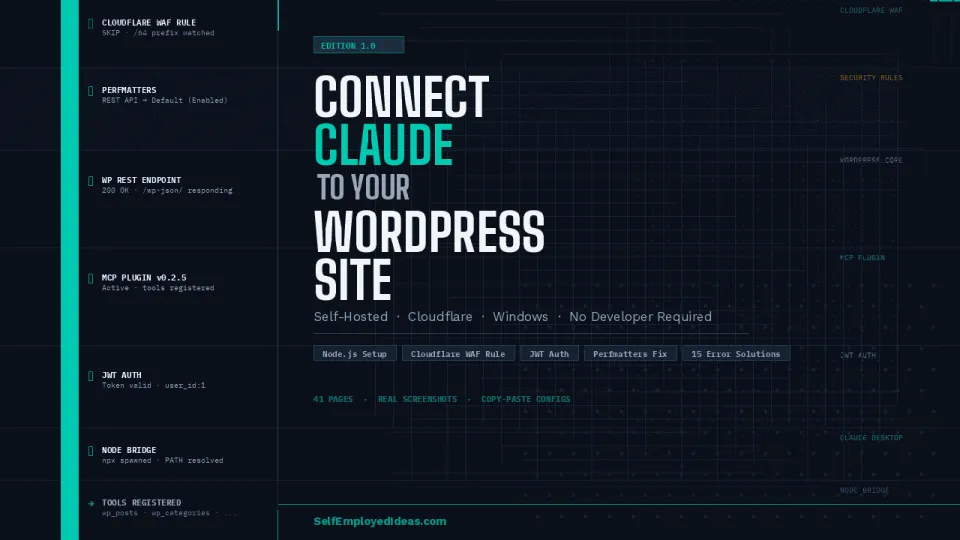
I put together a 41-page walkthrough from scratch, written for site owners not developers. It covers Node.js installation on Windows, installing the MCP plugin from GitHub, generating and managing JWT tokens, the exact Claude Desktop config that works on Windows, the Perfmatters fix, the full Cloudflare WAF expression, a troubleshooting chapter with 15 named errors and fixes, copy-paste config files, and a plain-English glossary.
Real screenshots. No fluff.
→ Get the complete setup guide on Gumroad
What I’m Using This For
My actual use case is SEO content production and site auditing. Content audit: “List all posts in category X, show me word count and internal link count for each.” Used to take an hour in wp-admin. Silo gap analysis: “Show post counts per category grouped by parent silo, flag anything under 3 posts.” Batch draft generation: “Create a draft post under category ID 1495 with this title and outline, status draft.” Post lands in WordPress ready to review.
None of this replaces judgment. It removes the mechanical overhead, which for a solo site owner is the difference between time spent creating and time spent clicking through menus.
A Note on Security
The setup uses JWT tokens that grant admin access to your site. Never paste a live JWT into any chat, email, or public forum. Tokens expire every 24 hours, regenerating takes 60 seconds. The Cloudflare rule is IP-locked to your home network. Everyone else still gets the full WAF treatment. If you accidentally expose a token, revoke it immediately from the plugin’s settings page.
Bottom Line
Connecting Claude to a self-hosted WordPress site behind Cloudflare works for a non-developer. It’s not a 5-minute process and the errors aren’t documented in any single place. Until now.
→ Get the complete setup guide
Questions about your specific setup? Leave a comment. If you’re hitting an error not covered in the guide, I want to know about it.